Your first video
By the end of this page you will have an MP4 of a storm that is happening right now, saved on your own computer.
Use Chrome, Edge or Brave. If no storm is active anywhere in the world today, pick a past storm instead — every step below works the same way.
Four steps
Pick a storm
Storm Studio opens on the Home screen. At the top, under LIVE NOW, is every storm active anywhere in the world, taken straight from the official advisories. Click one. The editor opens with it already loaded.
Changing your mind costs you nothing. Pick a different storm whenever you like, in the Data panel or from the Home screen. It never resets your timeline, your look or anything else you have set up.
Pick a look and a camera template
Two choices, and they do different jobs. A look decides how the video is drawn — the colours, the type, which graphics appear. A camera template decides how it moves.
For a first video, leave the look as it is and choose Forecast track in the Camera panel. It flies along the predicted path and is the one most people want.
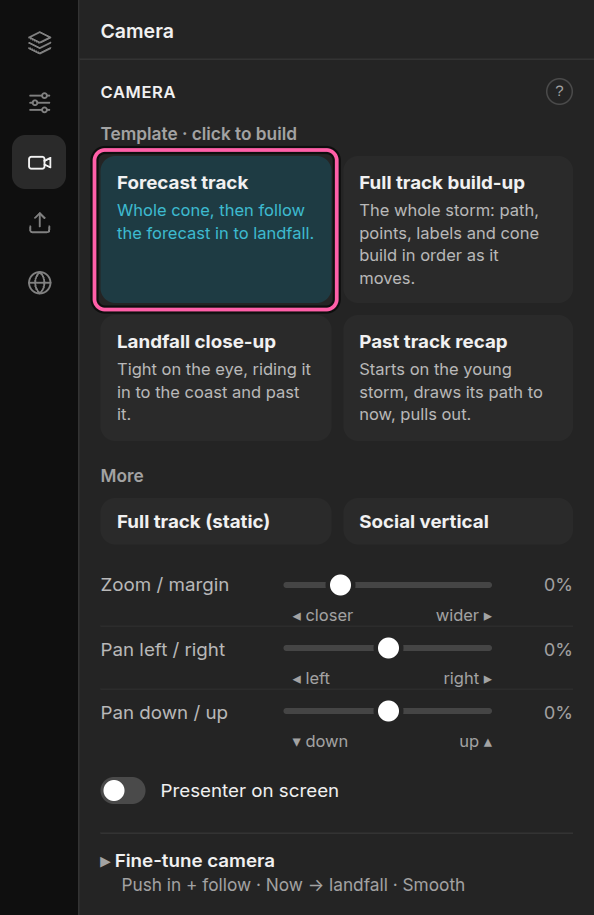
That is the whole of it. The app builds the complete video the moment you pick them — there is nothing to assemble, and no timeline to fill in by hand.
Watch it once
Press the play button below the canvas.

What you see is exactly what you get. The same renderer draws the preview and the exported file, so nothing in the MP4 will surprise you.
The video is ten seconds long to begin with. If the storm needs longer to tell its story, change Animation in the same bar and watch it again.
Export it
Choose File › Export video…, or press Ctrl E, then click Export video and pick where to save. Every frame is rendered at exactly the right moment in time, so the file comes out smooth however busy your computer was while it worked.
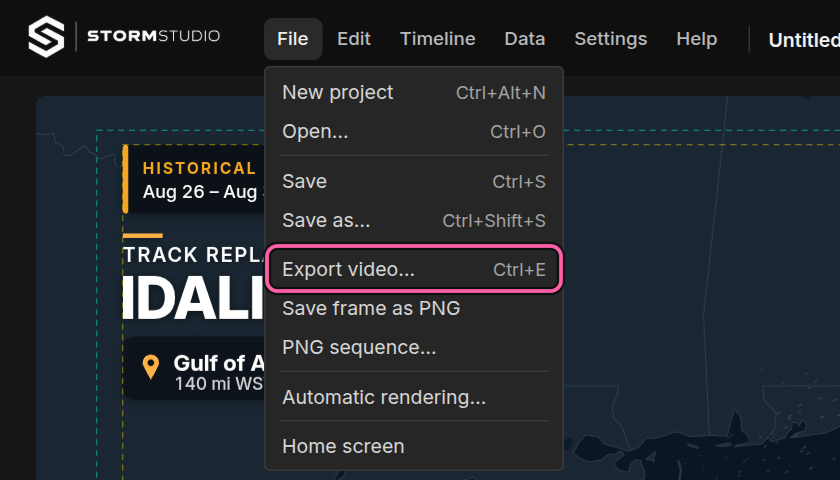
Keep the tab in front while it renders. Browsers slow down work in a tab you cannot see, and the export pauses until you come back to it. A ten-second video takes well under a minute, so this is rarely more than a short wait.
That is your first video. Everything else in this manual is a variation on those four steps.
What next
- Save your project — so you can come back to it
- Make the same video for phones — one project reflows to 9:16
- Put your logo on it — brand images in every frame shape
- Render a new video on every advisory — schedules