Make the same video for phones
By the end of this page you will have a vertical 9:16 video of the same storm, made from the project you already have, without building anything again.
Three steps
Change the frame
Choose Settings › Canvas size and pick 1080×1920, or click the 9:16 tile in the Canvas panel. The picture turns upright at once.
One project, every shape. The camera, the graphics and the timeline all reflow to the new frame. Nothing is rebuilt, and switching back to 16:9 gives you the widescreen video exactly as it was.
Check the graphics
On a phone the whole tall frame is shown small, so every graphic is drawn bigger in a vertical frame — half as big again unless you change Graphics size in vertical video in Canvas, Layout. Your project keeps its own sizes, so the TV video stays at TV sizes.
In a 9:16 frame, with the safe area guides on (Settings › Safe area guides in the preview), the preview also shows in red roughly where YouTube Shorts puts its own title and buttons over the video. It is only a guide: it is never exported, and nothing is kept out of it for you.
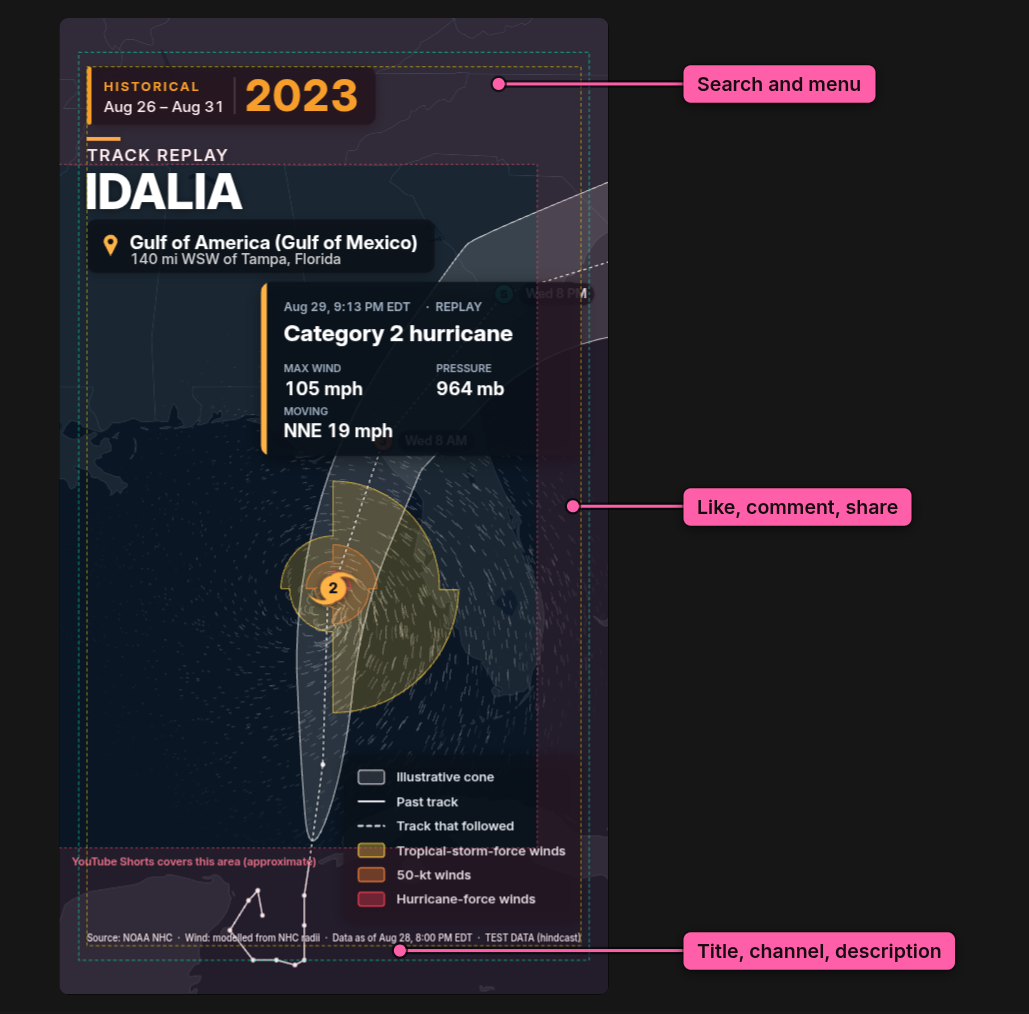
If you moved a graphic on its own (Move across, Move up or down), the move applies in both frames. Look at each one.
Export it
Choose File › Export video…, then click Export video and pick where to save, as for any video.
The space for a presenter exists only in widescreen 16:9. In a vertical frame it is left out, and your setting is kept for when you go back.
Going further
- For a video made only for social media, the Social vertical camera template, under More in the Camera panel, frames the storm for a tall picture from the start.
- A schedule can make the widescreen and the vertical video of every advisory together: give it both formats. See Render a new video on every advisory.
What next
- Put your logo on it — it sits right in every frame shape
- Render a new video on every advisory — both formats, made for you