Render a new video on every advisory
By the end of this page Storm Studio will make a new video by itself each time a new advisory comes out, while you are away.
Automatic rendering needs a small program, the helper, running on your computer. Start it with setup-helper.bat and choose 1. The clock button below the canvas turns from grey to teal once a schedule is on, so you can always see whether anything is waiting to run.
Six steps
Make the video by hand
In the editor, with its look, intro, outro and music, as for any video. This is the video every automatic one will be made from.
Start a schedule
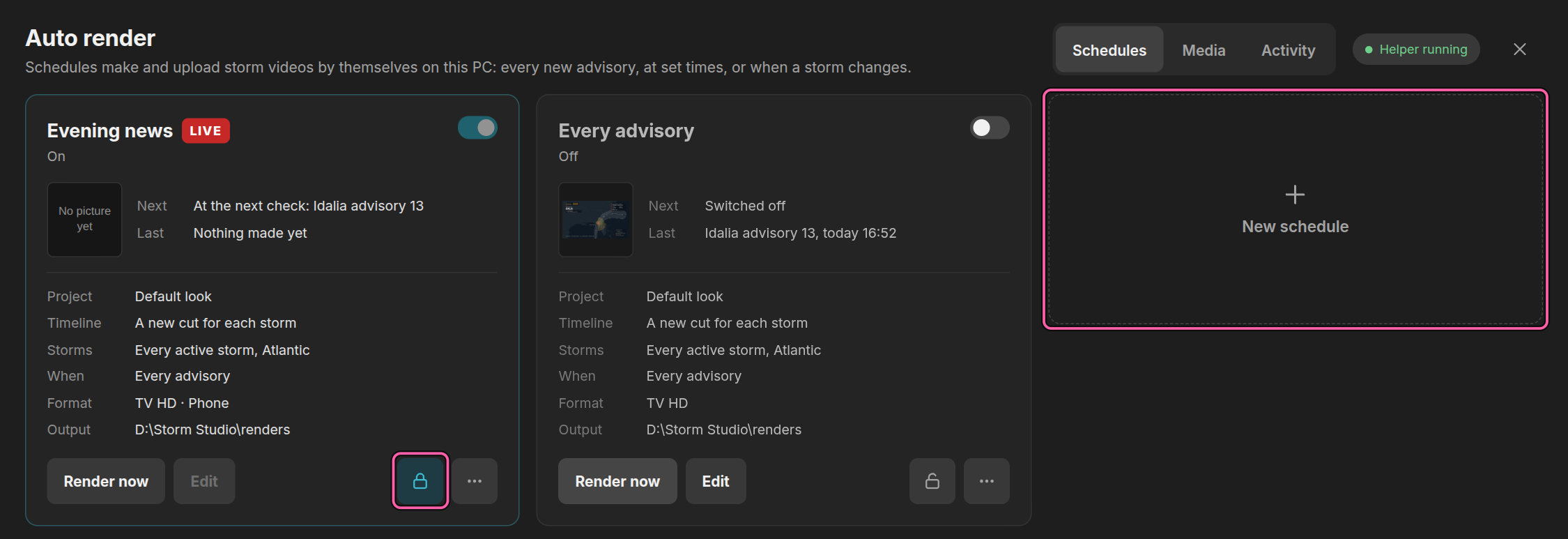
Click the clock below the canvas, or choose File › Automatic rendering…, then New schedule. Quick asks three things: the storm, when the first video is made, and what follows — for example Every new advisory. The rest is set for you from the project as it is now. All settings shows every choice, including the formats, the output folder and YouTube.
Save the schedule
A copy of the project is kept with the schedule, and any file the media library does not have yet is copied, with progress. The schedule starts only when every file is there.
A schedule never makes half a video. Before the first frame, every file is looked for. If one is missing, no video is made, and the schedule's card and the Activity list say which file.
Leave it running
Advisories come every six hours, at 03:00, 09:00, 15:00 and 21:00 UTC, and a special one can come at any time. With no storm to render, nothing is made. Each video goes to the schedule's renders folder; click the picture on its card to open it.
Change something
Change the project in the editor, then open the schedule with Edit. On its Project tab choose This project, as it is now in the editor, and save it. The copy is renewed and only new files are copied.
Work in the editor never changes a video that is due. Until you save the schedule with the new project, every render uses the copy it already has.
Lock it
When a schedule is how you want it, click the lock on its card. A locked schedule shows LIVE and cannot be changed or deleted by accident. Unlock it to change it.
Good to know
- Duplicate, in the card's ⋯ menu, copies every setting — the usual way to make the same schedule at another format. The copy is switched on when you save it, if the original is on.
- AUTO › Media lists every file the schedules use. A file no schedule uses can be removed there; the app never removes one by itself.
What next
- When something goes wrong — the helper, missing files and locked schedules