Show the computer models (spaghetti)
By the end of this page your video will show the computer models' own forecast tracks under the official one, with a caption that says what they are.
What the lines are
Forecasters look at many computer models before they draw the official track. Drawn together, the models' tracks look like spaghetti, hence the name. Where the lines stay close, the models agree and the forecast is surer; where they fan out, it is less sure.
The lines are guidance, not the forecast. The official forecast is the cone and the forecast path. The video always carries a caption saying the lines are "Computer guidance, not the official forecast", for as long as they are on screen. It cannot be switched off.
1. Switch it on
Click Spaghetti in the buttons down the right edge, then switch on Show spaghetti. The newest model tracks for the storm come from the data server and are kept in the project, so the video can always be made again the same.
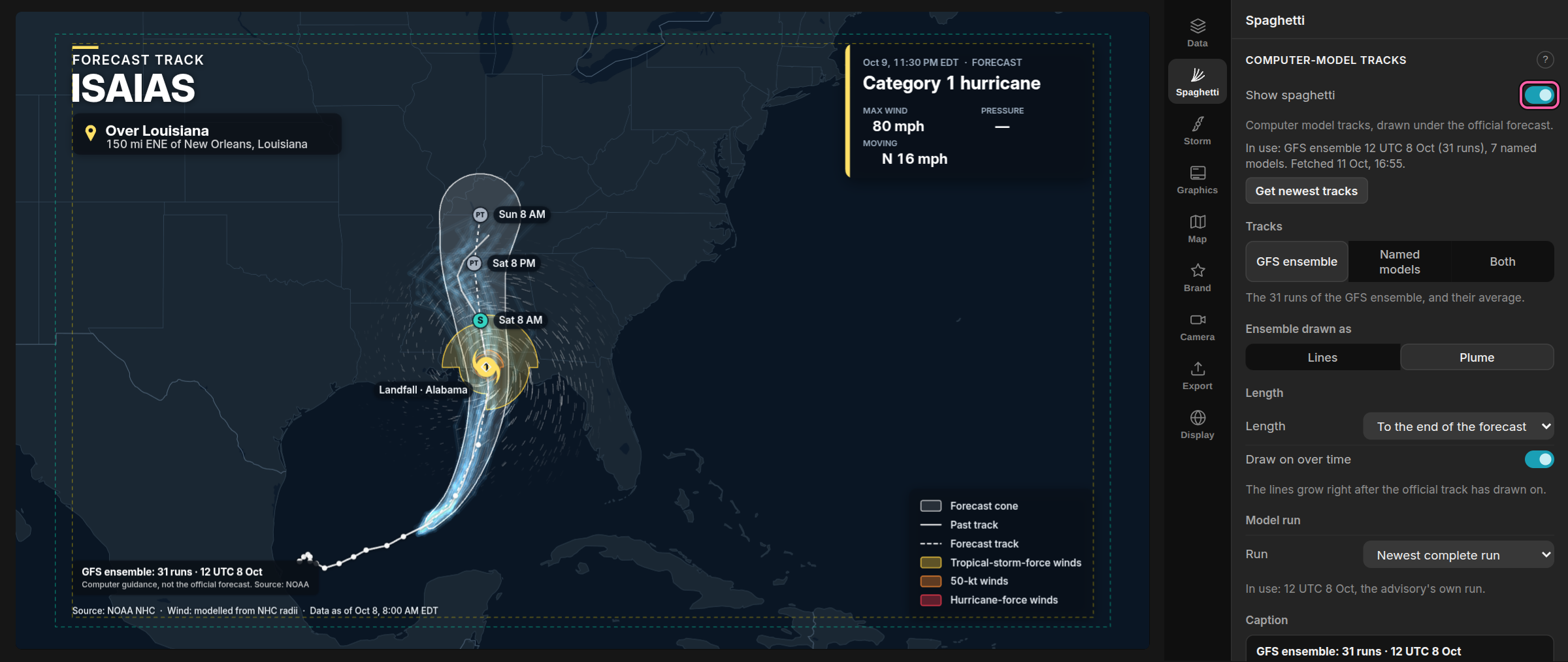
Only live advisories from the Atlantic and the East and Central Pacific have model tracks. For a past storm, or a storm from another ocean, the panel says there are none.
2. Choose what to show
- Tracks: GFS ensemble (31 runs of the US global model, and their average), Named models (seven well-known models, each in its own colour with its name at the end of its line), or Both.
- Ensemble drawn as: Lines, or Plume, a soft glow that is brightest where the runs agree.
- Length: to the end of the official forecast, the full length of each track, or a set number of hours.
- Draw on over time: the lines grow right after the official track has drawn on.
3. Check the run
Model run shows when the models started, such as "12 UTC 8 Oct". Newest complete run is usually right. The advisory's own run matches the advisory's time exactly, once the data server has it.
Lines are only drawn for runs that belong with the advisory: from 12 hours before it to 6 hours after. If you load a newer advisory, the panel gets new tracks by itself; if it says the tracks are too old or too new, click Get newest tracks, or choose the other run.
4. Make it yours
Under Design in the same panel: the colours and widths of the lines, how they fade, the average, the model names, and the caption's corner and look. Smooth curve draws each track as a smooth line through every position the model gave; Tension sets how round it is, from 0 (fully round) to 1 (straight). Around 0.5 suits most storms: where a model stalls and turns back, a low tension draws a small loop. These are part of your house style, so they come with it.
What next
- Put your logo on it — and save it all as your house style
- Render a new video on every advisory — with the newest tracks on every one