When something goes wrong
Each problem below is written the way you would notice it. Find the one that matches, and the fix follows.
Storms and data
No storms are listed on the Home screen
Either no tropical storm is active anywhere right now — which happens for weeks at a time outside the season — or your browser is blocking the storm data.
- If you use an ad blocker, or Brave's Shields, allow Storm Studio's data server and reload.
- If the list is empty because the season is quiet, pick a past storm instead. Everything works the same way.
The advisory is marked red
The storm card turns red when the advisory may be out of date: a newer one exists, or it is more than nine hours old. Press Latest Advisory in the Data panel to bring in the newest one.
A red card is a warning, not an error. You can still export. Just make sure an older forecast is what you mean to show.
The video says "Replay" or "Test data"
That is on purpose and cannot be switched off. A video of a past storm, or of test data, always says so, so it can never be mistaken for a live forecast.
Making the video
The export stopped part-way, or is very slow
Almost always the tab was in the background. Browsers slow down work in a tab you cannot see, and the export pauses until you come back. Bring the tab to the front and leave it there until the file is saved.
The export failed with a message
Storm Studio would rather stop than drop a frame, so a file is never quietly missing a piece. The message says why. The usual causes:
- A media file is missing — a picture or clip used in the timeline has been moved or deleted. Put it back, or choose it again from the clip's settings.
- The browser ran out of memory — most likely on a long or 4K video. Close other tabs and try again; if it still fails, export at HD first.
Save before a long export. If the tab crashes during an export, anything since your last save is lost. Storm Studio does not save for you yet.
There is no "Export video" option, or it fails at once
You are probably using Firefox or Safari, which cannot write H.264 video. Open Storm Studio in Chrome, Edge or Brave.
A video clip is silent
A clip from an older project has no sound until you give it some. Click the clip on the timeline and raise Its sound in its settings.
The presenter button is greyed out
The presenter space only exists in widescreen 16:9. In vertical, 4:5 and square frames the button switches off and the space is removed. Your setting is kept for when you go back to 16:9.
A graphic does not fit, or overlaps another
Open the Design list in the Style panel. The layout check at the top names any graphic that does not fit. Switch on Shrink graphics that are too wide in Canvas, Layout, or give the graphic a smaller scale.
The time on the video shows the wrong zone
Set it in Settings › Display and units, Time zone. The abbreviation then follows the date — BST in summer and GMT in winter, for example.
Saving and opening
My video clips are not in the media folder
You are using Brave without its File System Access setting. Type brave://flags/#file-system-access-api in the address bar, switch it on, restart Brave, and save the project again.
A project opens without its music or clips
The project's media folder was not copied with it. Copy the folder that sits next to the project file, keep the two side by side, and open the project again.
Automatic rendering
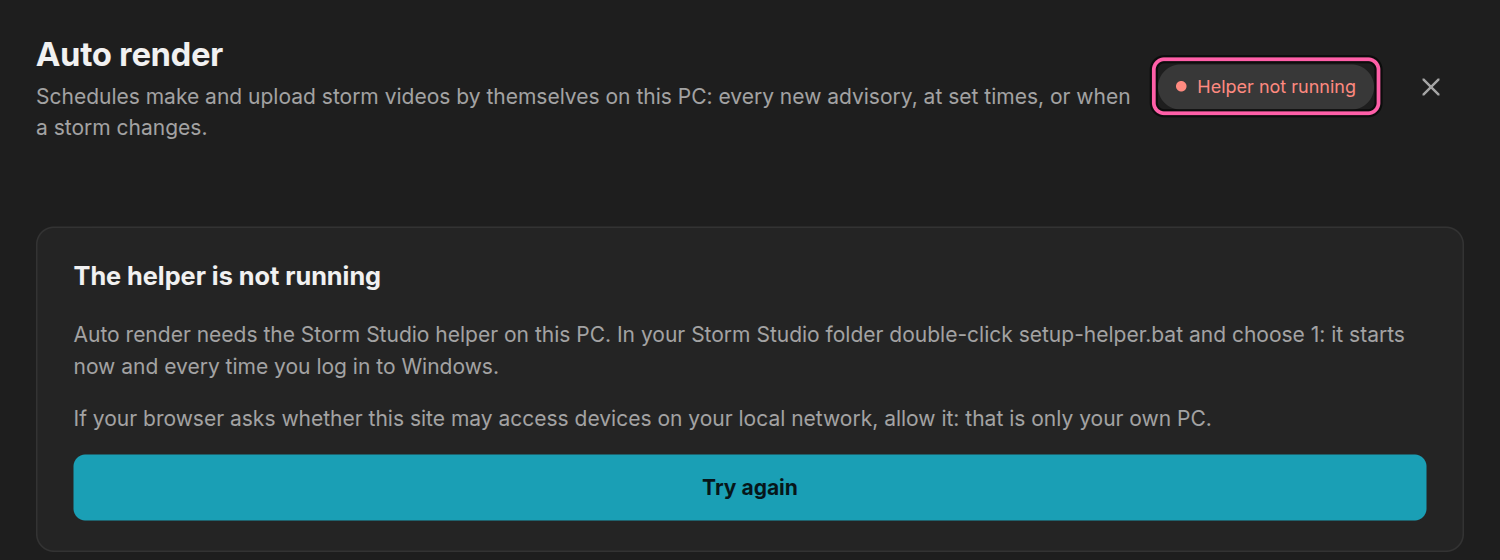
Automatic rendering says the helper is not connected
Automatic rendering needs a small program, the helper, running on your computer. Start it again with setup-helper.bat, choose 1, and hover over the clock below the canvas to check it has connected.
A schedule did not make a video because a file is missing
A picture, clip or sound the project uses is not in the media library. The schedule's card and the Activity list name the file. Open the project in the editor, put the file back, and save the schedule again. Storm Studio never makes half a video, or one without its sound, to get round a missing file.
I cannot change a schedule
It is locked. Click the lock on its card to unlock it, make your change, and lock it again.
Still stuck
Press ? for every keyboard shortcut, or click the ? beside any setting for what it does. If none of this helps, write to us at support@stormstudio.tv with what you were doing, the storm you had open, and the exact words of any message — that is nearly always enough for us to find it.